GB WhatsApp How to Download Status: Complete Guide 2026
One of the most loved features of GB WhatsApp Download is the ability to save statuses directly to your phone without needing any third-party app. In the official WhatsApp, status content disappears after 24 hours and cannot be saved unless you use a workaround or a separate downloader tool. GB WhatsApp eliminates that frustration entirely. This guide explains exactly how to download statuses in GB WhatsApp, covers all supported media types, and walks you through tips to make the most of this feature in 2026.
Why GB WhatsApp Status Download Is Better Than Official WhatsApp
The official WhatsApp does not include a native status download option. Users have to rely on file manager tricks, screen recording, or external apps to save statuses. These methods are inconsistent, often produce lower quality, and require extra steps.
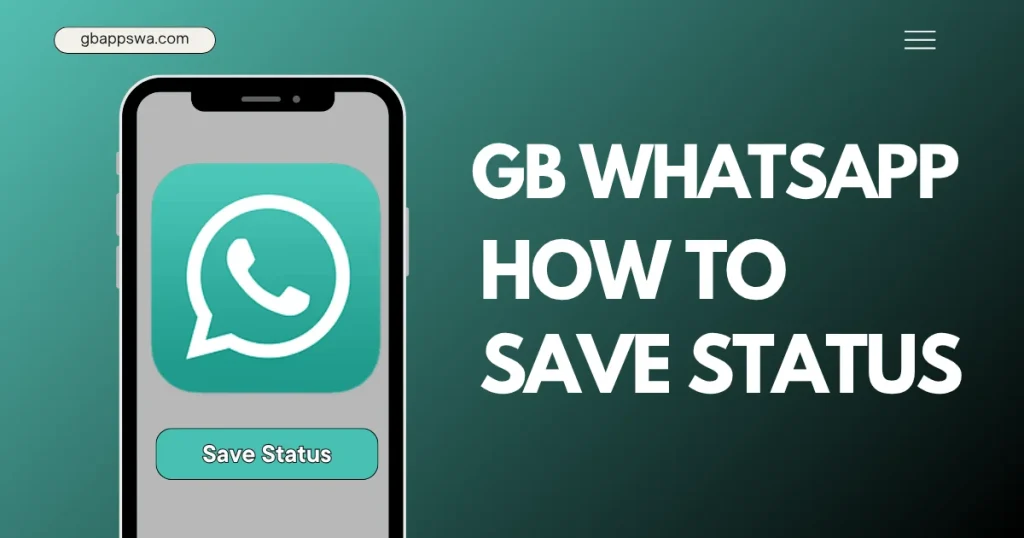
GB WhatsApp solves this with a built-in, one-tap status saver. The feature supports photos, videos, GIFs, and even animated sticker statuses. The saved file retains its original quality — no compression, no resolution loss. This is especially useful for saving memories, funny clips, or creative content posted by your contacts.
You can download the latest version with full status download capability from https://gbappswa.com/.
What Types of Status Can You Download in GB WhatsApp
GB WhatsApp supports downloading the following types of status content:
- Photo statuses in JPEG and PNG format
- Video statuses in MP4 format
- GIF statuses
- Voice note statuses (audio)
- Multi-page statuses with mixed photo and video content
All of these can be saved directly to your phone’s gallery or internal storage with a single tap.
How to Download Status in GB WhatsApp: Step-by-Step
Method 1: Using the Built-In Download Button
This is the simplest and most direct method. GB WhatsApp adds a download icon directly on the status viewer screen.
Step 1: Open GB WhatsApp and tap the Status tab at the top.
Step 2: Tap on the status you want to view — either a photo or a video.
Step 3: While the status is playing or displayed, look for the download icon (an arrow pointing downward) in the bottom right or bottom left corner of the screen depending on your version.
Step 4: Tap the download icon. The file will be saved to your phone immediately.
Step 5: Open your Gallery or Photos app. The downloaded status will appear in a folder typically named GB WhatsApp Status or Saved Statuses.
That is all there is to it. No third-party apps, no complex steps, no quality loss.
Method 2: Using the GB WhatsApp File Manager
If the download button is not visible for a particular status format, you can use the file manager approach.
Step 1: Open your phone’s File Manager app.
Step 2: Navigate to Internal Storage, then to the WhatsApp folder, or search for a folder named GBWhatsApp.
Step 3: Inside the GBWhatsApp folder, open the Media folder, then .Statuses.
Step 4: Note that this folder may be hidden. Enable the option to show hidden files in your file manager settings.
Step 5: You will see all the statuses of your contacts that you have already viewed. Copy or move the ones you want to your Gallery folder.
This method gives you access to all viewed statuses at once, rather than downloading them one by one.
Method 3: Saving Status While Replying
Sometimes you may want to save a status and reply to it at the same time. In GB WhatsApp:
Step 1: Open the status you want to download.
Step 2: Tap the Reply option at the bottom.
Step 3: Before sending your reply, tap the download icon that appears alongside the status. The file saves in the background while you compose your reply.
This is a convenient workflow when you want to both engage with the status and keep a copy of it.
GB WhatsApp Status Download: Feature Comparison Table
| Feature | Official WhatsApp | GB WhatsApp |
|---|---|---|
| Built-in download button | No | Yes |
| Download photos | No (manual workaround only) | Yes, one tap |
| Download videos | No | Yes, full quality |
| Download GIFs | No | Yes |
| Download audio statuses | No | Yes |
| File quality preservation | N/A | 100% original quality |
| Requires third-party app | Yes | No |
Where Are Downloaded Statuses Saved
By default, downloaded statuses are saved to your phone’s internal storage under a folder called GBWhatsApp/Media/Saved Statuses or directly into your Gallery under an album named after GB WhatsApp. The exact location can vary slightly depending on your Android version and device model.
To change where statuses are saved, go into GB Settings inside the app and look for the Storage section. Some versions allow you to specify a custom save path, which is useful if you want all statuses saved directly to a specific album in your gallery.
Tips for Getting the Best Results from Status Downloads
- Always view a status fully before downloading — partially loaded videos may save incompletely
- For videos, wait until the video finishes buffering before tapping the download icon
- Keep GB WhatsApp updated to the latest 2026 version from https://gbappswa.com/ to ensure the download button displays correctly for all media types
- If a status expires before you download it, it will no longer be accessible even through the file manager
- Downloaded statuses are saved to your device only and are not backed up to cloud storage automatically
Privacy and Ethics of Downloading Statuses
GB WhatsApp makes status downloading technically easy, but it is worth keeping privacy considerations in mind. A status is posted with the expectation of a 24-hour window. If someone posts a status and later deletes it before the 24 hours are up, a downloaded copy bypasses that choice. Always use status downloads respectfully — save content for personal memory, not for sharing without the poster’s consent.
GB WhatsApp does not notify contacts when you download their status. The download process is completely invisible to the person who posted it, similar to how viewing a status without reacting is invisible.
Running GB WhatsApp on PC and Downloading Statuses
If you are using GB WhatsApp on a PC through an Android emulator, the status download feature works exactly the same way. The download button appears on the status viewer screen just as it does on a phone. Downloaded files are saved within the emulator’s virtual storage, and you can transfer them to your actual PC storage using the emulator’s file sharing feature.
This is particularly useful for content creators or social media managers who want to save and organize status content for reference. The larger screen makes navigation and selection much easier.
For the best PC experience with full status download support, get the latest APK from https://gbappswa.com/ and install it inside your preferred Android emulator.
Additional Status-Related Features in GB WhatsApp
Beyond just downloading, GB WhatsApp offers several extra status features that the official app does not:
- Extended status character limit — write longer text statuses beyond 139 characters
- Status view privacy — hide from specific contacts without removing them
- View statuses without the contact knowing by enabling ghost mode before opening the status tab
- Post higher resolution photos in statuses without WhatsApp compressing them
- Play video statuses on a loop automatically
These features collectively make the GB WhatsApp status experience far richer than anything the official app offers.
Frequently Asked Questions
Q1: Does GB WhatsApp notify my contact when I download their status?
No. GB WhatsApp status downloads are completely silent and invisible. The contact whose status you download does not receive any notification.
Q2: Can I download statuses that have already expired?
No. Once a status expires after 24 hours, it is no longer accessible. You can only download statuses that are currently active and that you have already viewed within the 24-hour window.
Q3: Where exactly are downloaded statuses saved on my Android phone?
They are typically saved in GBWhatsApp/Media/Saved Statuses in your internal storage, and they also appear in your Gallery app under a GB WhatsApp album.
Q4: Can I download statuses in GB WhatsApp on PC?
Yes. When running GB WhatsApp on a PC via an emulator, the status download feature works the same way. The download button is visible in the status viewer. Download the latest version from https://gbappswa.com/ for full feature support.
Q5: Why is the download button not showing on some statuses?
This usually happens when you are using an outdated version of GB WhatsApp. Update to the latest 2026 build from https://gbappswa.com/ to restore the download button for all status types including photos, videos, and GIFs.